Git Version Control Basics: Commands, Workflows, and Best Practices Explained
Git version control explained for beginners. Covers essential commands, branching, merging, conflict resolution, and practical workflow patterns.
Git is the foundation of modern software development. Whether you're a solo developer managing personal projects or collaborating on a team codebase, understanding Git's core workflows transforms how you work with code.
Why Git Matters
Without version control, you get:
- Files named "final_v3_ACTUALLY_FINAL.js"
- No way to recover from mistakes
- Impossible parallel development
With Git:
- Full history of every change
- Safe experimentation via branches
- Seamless team collaboration
Core Concepts
Repository: Container for your project files and their complete history. Exists both locally (your machine) and remotely (GitHub, GitLab).
Commit: A saved snapshot of your changes, with a description of what you changed and why.
Branch: An isolated copy of your codebase where you can make changes without affecting the main code.
Merge: Integrating changes from one branch into another.
Essential Git Commands
Setup:
git config --global user.name "Your Name"git config --global user.email "[email protected]"git init # Initialize new repogit clone <url> # Clone existing repoDaily workflow:
git status # See what changedgit add . # Stage all changesgit commit -m "Your message"git push origin maingit pull origin mainBranch operations:
git checkout -b feature/my-feature # Create & switchgit checkout main # Switch branchgit merge feature/my-feature # Merge into currentgit branch -d feature/my-feature # Delete branchPractical Workflows
GitHub Flow (simple, recommended for most teams):
- Create a feature branch from
main - Commit changes on the branch
- Open a Pull Request (PR)
- Review and merge to
main
Git Flow (larger teams with scheduled releases):
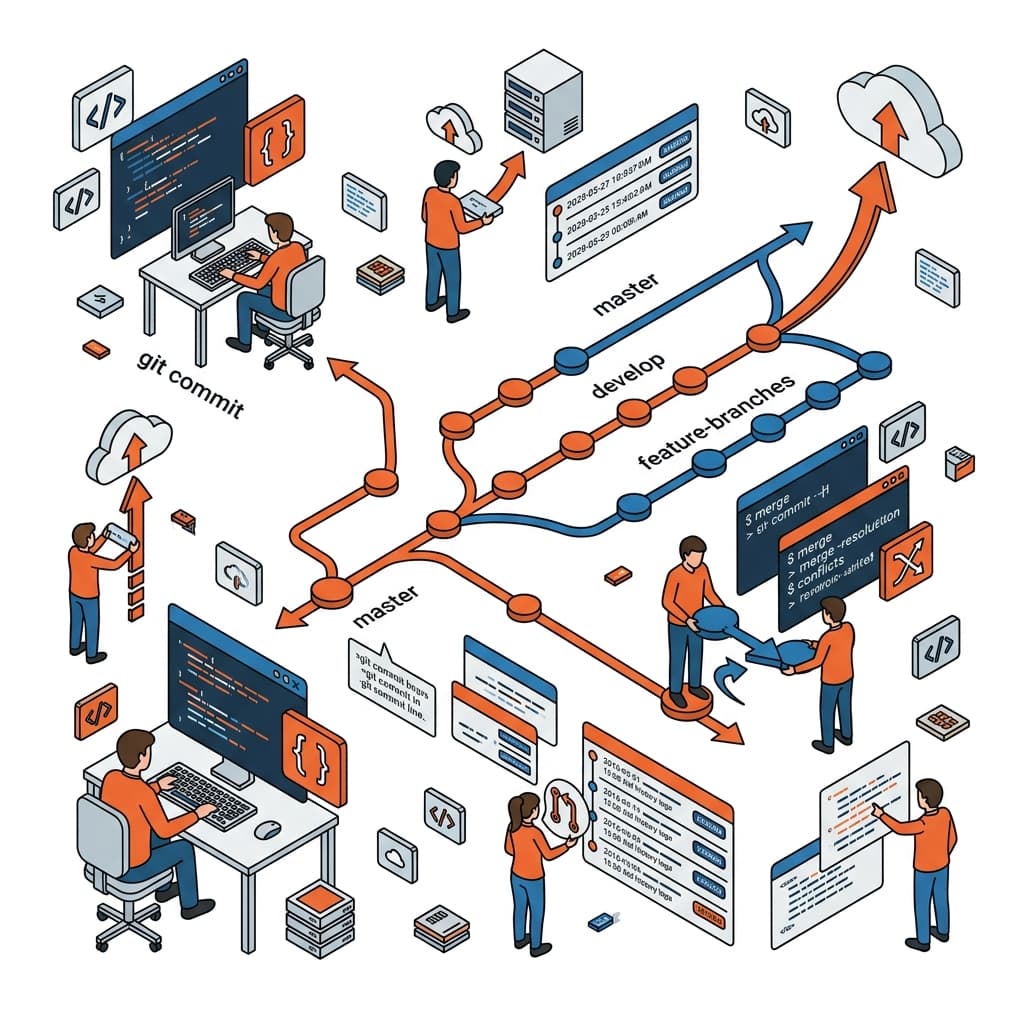
main: Production codedevelop: Latest development statefeature/*,hotfix/*,release/*: Purpose-specific branches
Resolving Merge Conflicts
When two people edit the same lines, Git shows:
<<<<<<< HEAD
Your version of the code
=======
Their version of the code
>>>>>>> feature/other-branch
Choose one version (or combine both), delete the markers, then commit.
FAQ
Q: git revert vs git reset — which should I use?
A: Use git revert for shared branches — it creates a new "undo" commit, preserving history. Use git reset only on local, unshared branches — it rewrites history, which causes problems for collaborators.
Q: How should I write commit messages?
A: Use the imperative form: "Add login feature" not "Added login feature." Consider Conventional Commits prefixes: feat:, fix:, docs:, chore: etc.
Q: What belongs in .gitignore?
A: Secrets (.env files), dependencies (node_modules/), build output (dist/, build/), and OS files (.DS_Store, Thumbs.db). GitHub's gitignore template repository has ready-made templates for every major language and framework.
Summary
Git mastery begins with the basic loop: branch → commit → push → PR → merge. Once that's comfortable, add revert, rebase, and stash to your toolkit. The Git cheat sheet keeps all key commands accessible as you build the muscle memory.