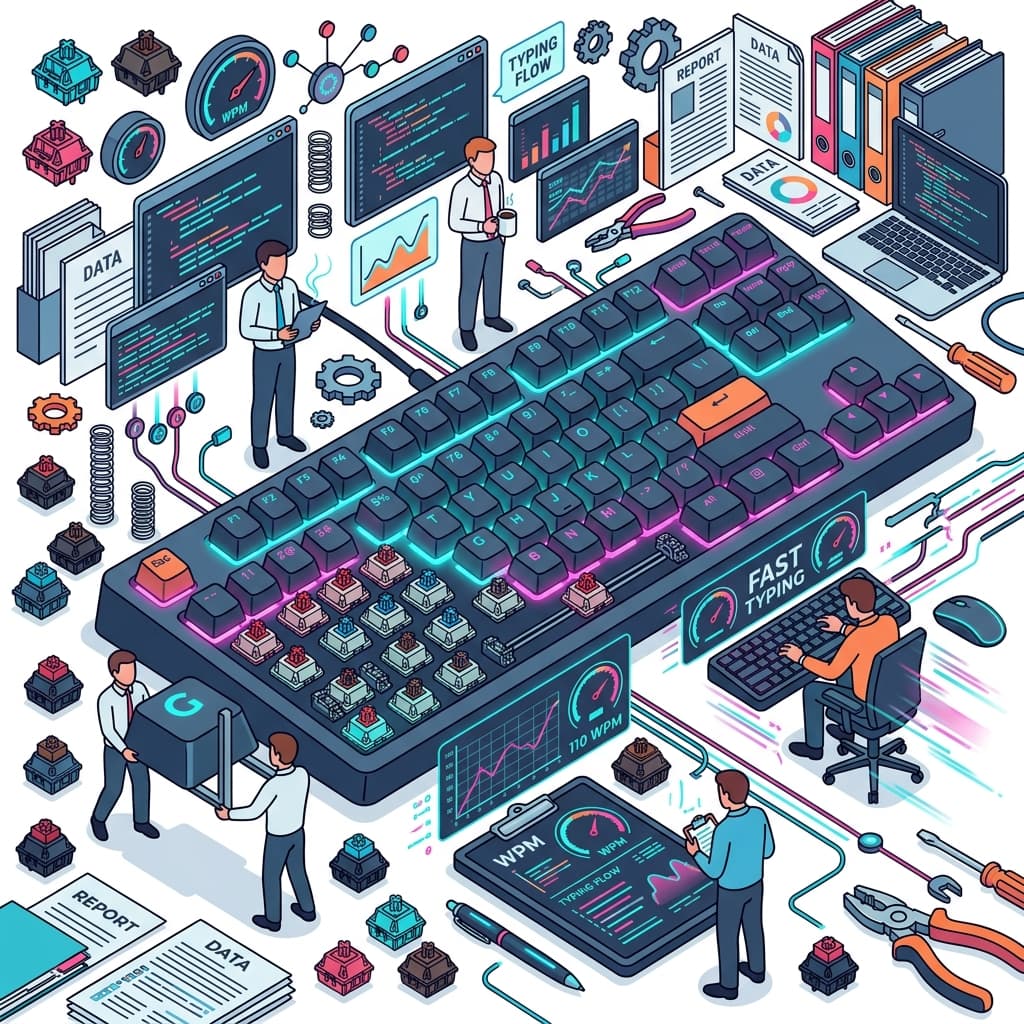
Can You Use a Gaming Keyboard for Work? Typing Feel and Speed
Often dismissed as just flashy toys for gamers, gaming keyboards offer a superior typing experience that can drastically improve your typing speed and reduce fatigue during professional work.
The Myth That Gaming Keyboards Are "Only for Games"
You’ve likely seen them in the electronics aisle: thick, aggressively styled keyboards blazing with pulsating rainbow LED lights. It’s easy to dismiss them with the thought, "Those are just toys for teenagers and e-sports pros."
However, in recent years, there has been a massive surge of programmers, writers, and administrative workers who process massive amounts of text in Excel and Word purposely adopting gaming keyboards (specifically mechanical keyboards) purely for professional office use.
The reason is remarkably simple: A gaming keyboard is fundamentally engineered as the ultimate input device, designed to let a human press buttons as quickly, accurately, and with as little fatigue as physically possible. In this article, we break down the three dramatic benefits of using a gaming keyboard for work, and how it transforms your typing speed.
Overwhelming Typing "Feel" Drastically Reduces Fatigue
The vast majority of standard laptops and cheap external keyboards utilize a "membrane" or "scissor-switch" mechanism, which relies on mashing down cheap rubber domes to register a keystroke. When typing for long hours on these, the harsh impact of "bottoming out" (the key hitting the hard plastic base) constantly reverberates into your fingertips, rapidly accumulating fatigue in your finger joints and wrists.
Conversely, the "mechanical" mechanisms dominating gaming keyboards feature a completely independent metal spring (switch) under every single keycap. This complex internal structure yields astonishing benefits:
- Feather-Light Input: Because you aren't fighting against a resistive rubber dome, you can type with an incredibly light touch.
- No Need to "Bottom Out": The keys register an input after being pressed down just a meager 2 millimeters (the "actuation point"). You do not need to press the key all the way down. Your fingers can literally glide across the surface, ensuring near-zero finger fatigue even after hours of continuous writing.
- Satisfying Tactile Feedback: You receive clear, tactile confirmation the moment the key registers, which drastically plummets your typo error rate.
Ultimate Customization: Choosing Your "Switch Color"
The greatest allure of mechanical keyboards is the freedom to select your preferred "switch type" (often color-coded), which dictates how heavy the keys are and how loud they sound. For professional work, these two are overwhelmingly recommended:
- Red Switches (Linear): These are the lightest switches, offering a perfectly smooth action with no bump. The typing sound is extremely quiet, making it impossible to pick up heavily on microphones during Zoom calls. It is heavily favored as the safest, most popular choice for quiet office environments.
- Brown Switches (Tactile): These offer a slight, satisfying "bump" of resistance right at the actuation point, giving you definitive physical confirmation of your keystroke. Because it's easier to notice typos instantly, it is highly preferred by programmers and those requiring meticulous accuracy. They are only slightly louder than Reds.
Note: Blue Switches (Clicky) provide the most enjoyable, loud "typewriter" clicking sound. While exceptionally fun to type on, they act as an obnoxious sound hazard in public offices or shared homes, and are guaranteed to invite noise complaints.
N-Key Rollover and Macros Propel Efficiency
Gaming keyboards come packed with specialized hardware features unavailable on standard office keyboards.
1. N-Key Rollover (Anti-Ghosting) When desperately typing at high speeds on cheap keyboards, pressing three or more keys simultaneously often causes the keyboard to drop inputs (known as "ghosting"). A true gaming keyboard will flawlessly scan and register every single key in the exact nanosecond order you press them, no matter how ridiculously fast your fingers move. The faster your inherent typing speed, the more profoundly you will feel this benefit.
2. Macro Functions via Dedicated Software Most gaming models feature dedicated desktop software allowing you to map complex keyboard shortcuts or long boilerplate text phrases to a single, dedicated macro button. Being able to execute a grueling Excel macro or input a long string of boilerplate code with one literal push of a button catapults your daily efficiency. (And yes, you can use the software to permanently turn off the rainbow lights or set them to a soothing, static white).
Typing Speed TestTest your typing speed (WPM) and accuracy with engaging practice texts.Conclusion: Investing in Your Input Device is Investing in Time
For the modern white-collar worker, a keyboard is the physical tool you touch the longest every single day. It is the direct equivalent to a sushi chef's premium knife or a master carpenter's saw.
Dropping $100 to $200 on a high-end keyboard is a premium investment, but considering the immediate returns—blistering typing speeds, eliminated wrist fatigue, massively reduced typos, and most importantly, making the sheer act of typing so enjoyable that it wildly boosts your work motivation—it pays for itself in sheer kinetic productivity within months.
Take a baseline measurement of your typing speed today, and prepare to feel the explosive difference for yourself.
FAQ: Using Gaming Keyboards for Work
Q. I really can't handle the embarrassing rainbow disco lights in a serious office... A. Every single premium gaming keyboard allows you to utilize its companion software (or built-in hardware shortcuts) to completely disable the LED backlighting, or set it to professional, static white. Once turned off, they honestly just look like a heavy, stealthy, premium black keyboard for professionals.
Q. Can I use a mechanical gaming keyboard with my Mac? A. If it connects via USB or Bluetooth, it will type letters perfectly fine. However, the "Windows" key acts as the "Command" key, meaning the physical layout feels slightly shifted. Recently, major brands like Logitech and Razer have begun aggressively releasing natively compatible "Mac Layout" versions, or features that swap the layout with a physical switch. Seeking these models out is the safest bet for MacBook users.
Q. Why do so many of them lack the number pad on the right (Tenkeyless / TKL)? A. In gaming, it's to free up massive physical desk space for aggressive mouse swiping. For work, however, it serves an ergonomic miracle: bringing the mouse physically closer to the keyboard reduces the extreme horizontal travel distance of your right arm, effectively eliminating right-shoulder and neck pain. Unless your job entails aggressive, non-stop numerical data entry (like accounting), a TKL model is vastly superior for ergonomics.