How to Print Beautiful Vertical Manuscript Paper: From Browser to PDF
Learn how to create and print vertical manuscript paper using only your PC or smartphone browser. No software installation, no registration, no data upload — save your 400-character vertical manuscript as a clean PDF.
Creating Vertical Manuscript Paper on a PC Was Surprisingly Difficult
"I want to write a book report in vertical format on manuscript paper" or "I want to submit a vertical-text PDF to a writing contest" — tools that can do this are surprisingly rare. Many people find it tedious to configure vertical text settings in Word or download dedicated software.
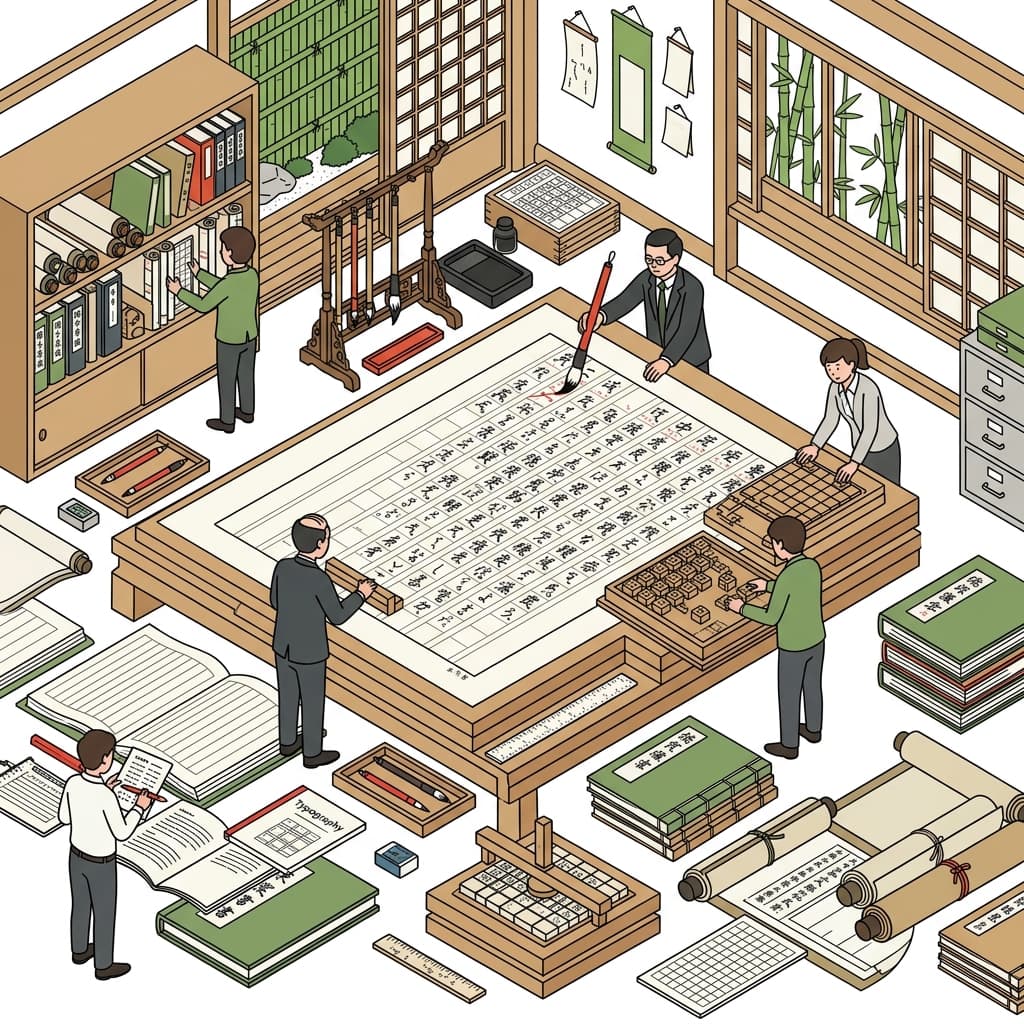
If you can use a browser-based tool that requires no installation, the whole process becomes much simpler. Jenee's Manuscript Editor automatically converts your text into a 400-character vertical manuscript paper format, which you can then save as a PDF directly from your browser's print function.
This article explains the specific steps for creating beautiful vertical manuscript paper layouts and printing or saving them as PDFs, along with tips for achieving cleaner results.
Three Main Methods for Creating Vertical Manuscript Paper
There are several ways to create vertical Japanese manuscript paper. Here is a comparison of the pros and cons of each approach.
Method 1: Word (Microsoft Word) with Vertical Text Setting
Pros: Fine-grained control over fonts and line spacing; works immediately if you have Office
Cons: Vertical text configuration is complex; accurately displaying grid squares is difficult; requires a PC
Method 2: Dedicated Manuscript Writing Software
Pros: Professional vertical writing layout
Cons: Installation required; many options are paid; often unavailable on smartphones
Method 3: Browser-Based Tool (Jenee)
Pros: No installation needed; works on smartphones and tablets; input data is never sent to a server; completely free
Cons: Advanced customization (e.g., detailed font changes) is not supported
If your goal is simply to preview vertical manuscript paper and save it as a PDF, a browser-based tool is the simplest option.
Manuscript PaperLayout text into a vertical 400-character Genkou Youshi for printStep-by-Step: Creating Vertical Manuscript Paper in a Browser
STEP 1: Prepare Your Text
First, draft your text in a text editor (Notepad, TextEdit, etc.) or a document app. Alternatively, you can type directly into the Manuscript Editor's text area.
Tip: Adding a full-width space at the start of each paragraph will create a natural first-line indent. Some browser tools handle this automatically.
STEP 2: Paste Your Text into the Manuscript Editor
Open Jenee's Manuscript Editor and paste your text into the left text area. The vertical manuscript paper preview will appear on the right in real time.
Check the following:
- Are line breaks placed where you intended?
- Are paragraph indents correctly applied?
- How many pages does your text fill?
STEP 3: Choose a Line Color
You can choose from four line colors: red, brown, green, or black. Select based on your intended use.
- Red: Traditional manuscript paper appearance
- Brown: Nostalgic and calming aesthetic
- Green: Clean look, easy on the eyes
- Black: Best for monochrome printing, high contrast
STEP 4: Print or Save as PDF
Click the "Print" button to open the print dialog.
Steps to save as PDF:
- In the print dialog, select "Destination" or "Printer"
- Choose "Save as PDF" (on Chrome: "Microsoft Print to PDF" or similar)
- Specify the save location and filename, then save
Print Settings for Cleaner Results
Small adjustments to your browser's print settings can significantly improve the final output.
Paper Size
Standard manuscript paper is typically B4 or A4 size.
- A4: Most convenient for home and school printers
- B4: Produces larger, easier-to-read grid squares (if your printer supports B4)
Set the "Paper Size" to A4 in the print dialog.
Margin Settings
Setting margins to "Default" or "Minimum" maximizes the printed area for the grid. If margins are too large, the usable area shrinks and the grid squares become small and hard to read.
Scale Setting
Fix the scale at "100%" or use "Fit to Page" while previewing to adjust as needed. Since rendering differs between browsers, always check the print preview before printing.
Turn Off Headers and Footers
By default, browsers add headers and footers showing the URL, date, and page number. For a clean manuscript paper printout, turn off "Headers and Footers" in the print dialog.
Vertical Writing Rules You Should Know
Vertical Japanese manuscript paper follows different rules from horizontal writing. Here are the key points to keep in mind.
Numbers
In vertical writing, Chinese numerals (一, 二, 三... 十, 百, 千) are the standard. However, Western year designations (e.g., 2024) are sometimes displayed using "tate-chu-yoko" (horizontal numbers within a vertical layout). Since the browser tool displays numbers as entered, convert them to Chinese numerals before pasting if needed.
Handling Alphabet / English Words
When English text is entered, each character appears vertically or rotated sideways in vertical layout. Text with many alphabetic characters is generally more readable in horizontal format — confirm whether vertical layout is specifically required.
Punctuation and Symbol Placement
- When「、」and「。」fall at the end of a line, they are typically moved to the start of the next line
- Leaving one space after「!」and「?」is standard practice
- Dialogue is enclosed in Japanese quotation marks (「」), with each character taking one box
Paragraph Indentation
Leave one box blank at the start of each paragraph. This is important both for readability and proper formatting.
Manuscript PaperLayout text into a vertical 400-character Genkou Youshi for printWhy Your Privacy Is Protected: No Data Sent to Servers
Some users may worry about pasting personal drafts into an online tool. Jenee's Manuscript Editor is designed so that your input text is never sent to a server. All processing happens entirely within your browser (your PC or smartphone), so there is no risk of your text being leaked externally.
- Input text is processed locally only
- No server uploads
- No registration or login required
- Completely free
You can safely enter personal writing or sensitive content.
FAQ: Common Questions About Vertical Printing
Q. Can I save a PDF from my smartphone?
A. Yes. From iPhone (Safari) or Android (Chrome), you can open the print dialog and select "Save as PDF" or "Print to PDF." The specific steps vary slightly by operating system, but the basic operation is the same.
Q. What should I do if text appears misaligned in the print preview?
A. Minor layout differences may occur between browsers. Using the latest version of Chrome provides the most stable results. Check that your zoom level is set to 100% and try adjusting the "Scale" setting in the print dialog.
Q. If my text spans multiple pages, will they all be saved in one PDF?
A. Yes. Using the browser's "Print → Save as PDF" saves all pages as a single PDF file. Page numbers are not added automatically — enable the page number display in print settings if needed.
Q. How do I print on paper sizes other than A4?
A. In the print dialog's "Paper Size" setting, you can select B4, Letter, and other sizes. However, since the grid layout is optimized for A4, margins and proportions may change with other sizes.
Summary: Create and Print Vertical Manuscript Paper Entirely in Your Browser
No dedicated software or complex Word configuration is needed to create and print vertical manuscript paper. With a browser-based tool:
- Paste your text and see a real-time preview
- Choose your preferred line color
- Save as a PDF using the browser's print function
That's all it takes to produce beautiful vertical manuscript paper in three steps. Since data is processed locally, it's also highly secure and works on smartphones and tablets. Try it for book reports, contest submissions, school writing assignments, or any other situation requiring vertical manuscript paper.
Manuscript PaperLayout text into a vertical 400-character Genkou Youshi for print