How to Write on Manuscript Paper with Your Smartphone: Vertical Text and PDF Saving in Your Browser
Learn how to create 400-character vertical manuscript paper and save it as a PDF on your smartphone — no app download, no sign-up, completely free. Includes step-by-step instructions and mobile-specific tips.
"I Want to Use Manuscript Paper on My Phone" Is a Totally Normal Need
After drafting a book report in a smartphone notes app, you might want to convert it into a vertical manuscript paper format and save it as a PDF. This kind of workflow is increasingly common. Many people want to write on the go during their commute and then create a submission-ready PDF right on their phone.
However, searching for "manuscript paper apps" returns many results that require installation, have feature-limited free tiers, or offer poor mobile support.
If a browser-based tool is available, you can skip the app installation entirely. This article walks you through creating a 400-character vertical manuscript paper and saving it as a PDF, all from your smartphone browser — step by step.
Three Options for Using Manuscript Paper on a Smartphone
Option 1: Dedicated Apps (App Store / Google Play)
Pros: Offline usage possible; integration with push notifications
Cons: Installation required; takes up storage; may cost money; compatibility varies by device
Option 2: Word or Google Docs on Smartphone
Pros: Familiar tools you already know
Cons: Vertical text configuration is difficult on a phone; producing a manuscript grid format is nearly impossible
Option 3: Browser-Based Tool (Jenee)
Pros: No app or installation needed; compatible with both iOS and Android; free with no registration; text is never sent to a server
Cons: Requires an internet connection (Wi-Fi or mobile data)
Considering the balance of convenience and security, a browser-based tool is the most practical choice.
Manuscript PaperLayout text into a vertical 400-character Genkou Youshi for printStep-by-Step Instructions: Works on Both iPhone and Android
STEP 1: Open Jenee's Manuscript Editor in Your Browser
Access Jenee's Manuscript Editor in your smartphone browser (Safari or Chrome recommended). Adding it to your home screen lets you launch it quickly next time.
How to Add to Home Screen (iPhone Safari):
- Open the Manuscript Editor page in Safari
- Tap the "Share" button (square with arrow icon) at the bottom of the screen
- Select "Add to Home Screen"
- Confirm the name and tap "Add"
This lets you launch it like a native app.
STEP 2: Enter Text in the Text Area
Tap the text area at the top of the screen to bring up the keyboard. Type directly, or copy and paste text you've written in a notes app.
Tips for Smartphone Input:
- For long texts, write first in a notes app (Apple Notes, Google Keep, etc.) and then paste for a more comfortable experience
- Adding a full-width space at the start of each paragraph applies first-line indentation
- Japanese punctuation (、 。) works correctly with flick-input keyboards
STEP 3: Review the Real-Time Preview
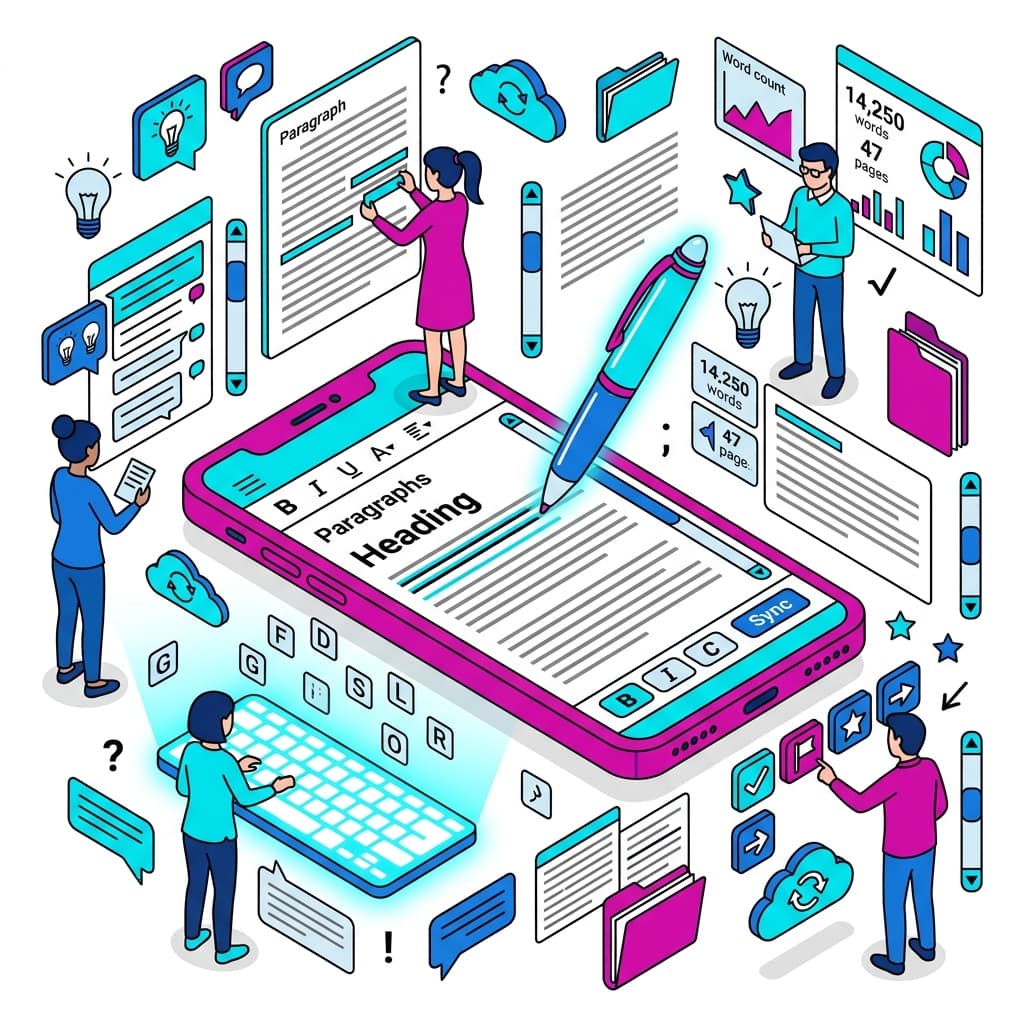
The manuscript paper preview updates in real time as you type. On a smartphone, scroll vertically to view multiple pages.
Check the following:
- Placement of line breaks and paragraphs
- Number of pages
- Correct first-line indentation
STEP 4: Choose a Line Color
Choose from red, brown, green, or black. On a smartphone screen, red or green tends to be easiest to read.
STEP 5: Save as PDF from Your Smartphone
Tap the "Print" button to open the print dialog.
Saving as PDF on iPhone (Safari):
- Tap the "Print" button
- The print preview opens
- Pinch outward with two fingers to switch to PDF preview mode
- Tap the "Share" button at the top right, then select "Save to Files"
Saving as PDF on Android (Chrome):
- Tap the "Print" button
- The print dialog opens
- Change the "Destination" to "Save as PDF"
- Tap "Save as PDF" to download to your Downloads folder
Use Cases Unique to Smartphones
Drafting on the Go
Write your text on a smartphone notes app during your commute, then convert it to manuscript paper format in the browser when you get home — print it or save it as a PDF for submission. This is the smoothest workflow.
Last-Minute Assignments Before a Deadline
Even if you're told "submit a book report PDF by tomorrow," as long as you have your smartphone and a mobile connection, you can handle it anywhere.
Submissions to Literary Awards and Contests
Save your completed work as a manuscript paper PDF on your phone, then send it to the contest organizer by email — the entire process can be done on your smartphone alone.
Pairing with a Tablet
Using an iPad or Android tablet gives you a larger screen for an easier-to-read manuscript preview. Connecting an external keyboard speeds up input as well.
Things to Watch Out for When Using Manuscript Paper on a Smartphone
Checking Your Character Count
On the smartphone version, the screen is portrait-oriented, so the text area and preview appear stacked vertically. Scroll down to the preview to check the page count display.
Handling Emoji and Special Characters
Entering emoji (😀, etc.) may cause them not to fit properly in the manuscript grid. Avoid using emoji in formal documents such as reports or essays.
Watch for Autocorrect Mistakes
Smartphone predictive text can lead to unintended autocorrections. Always review your text in the preview after typing to catch typos and mistaken conversions.
Numbers in Vertical Writing
In vertical format, Arabic numerals stacked vertically can be hard to read. Converting numbers like "3" or "12" to their Chinese equivalents (三, 十二) before pasting produces a cleaner vertical layout.
Manuscript PaperLayout text into a vertical 400-character Genkou Youshi for printFrequently Asked Questions About Using Manuscript Paper on a Smartphone
Q. Does it work on both iPhone and Android?
A. Yes. It is compatible with iOS (Safari) and Android (Chrome). If your OS or browser is outdated, updating to the latest version is recommended.
Q. Does it work offline?
A. After your first visit, the browser may cache some content for limited offline use, but full offline support is not guaranteed. Using it with a stable Wi-Fi or mobile data connection is recommended.
Q. Can I save a PDF without actually printing?
A. Yes. Simply select "Save as PDF" from the print dialog — no physical printing is needed.
Q. Is my text auto-saved?
A. Text is retained during your current browser session, but will be lost when you close the page. Always back up important manuscripts by copying them to a notes app or external text editor.
Q. What if the print dialog doesn't open?
A. Your browser's popup blocker may be active. Allow popups for the Jenee site in your browser settings. In Chrome, you can adjust this from the site information icon next to the URL.
Summary: Create and Save Vertical Manuscript Paper as PDF Right from Your Smartphone
To recap the process of creating a 400-character vertical manuscript paper and saving it as a PDF on your smartphone:
- Open the Manuscript Editor in your browser
- Enter or paste your text
- Check the page count and content in the preview
- Save as a PDF from the print dialog
No app installation, no registration, and completely free. Your text is never sent to a server, so personal content is safe to enter. Try it for book reports, contest submissions, school writing assignments, or any other situation where vertical manuscript paper is needed.
Manuscript PaperLayout text into a vertical 400-character Genkou Youshi for print